Find your way round the shared budget
Budget → Shared budget is the whole month on one page. Here's how to read it, and the quick ways to change it.
Updated 19 November 2026
The short answer
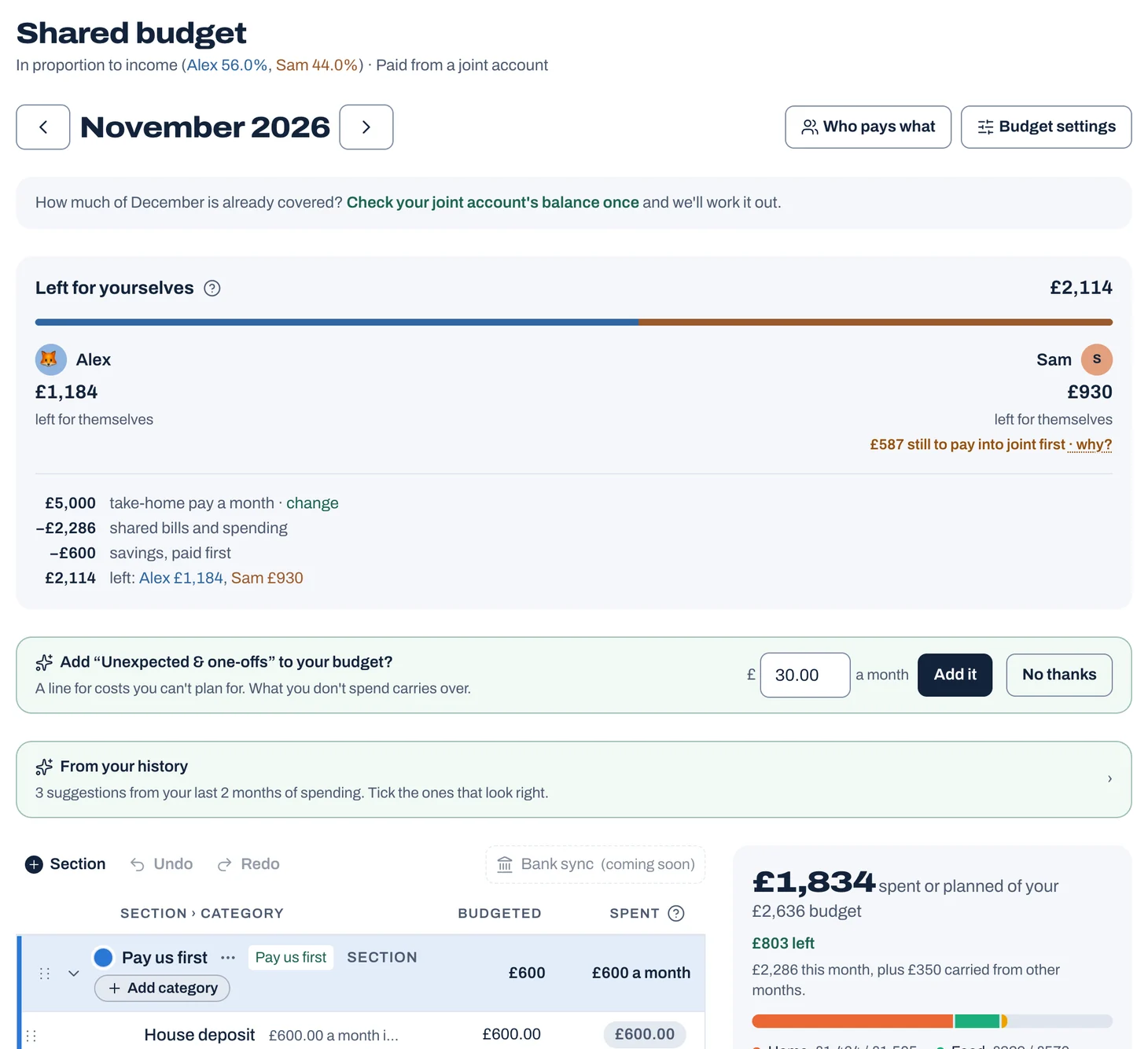
Go to Budget → Shared budget. The top shows what's left for each of you after shared bills and savings. Below it, each section is a heading row and each line is a row with its status on the right, a track underneath, then Budgeted (this month's budget plus anything carried over) and Spent. Tap a line to edit it, drag it to move it, and undo with the Undo button or Ctrl/Cmd+Z.
Reading the page
- At the top: your take-home pay, less shared bills and spending and any savings you pay first, gives what's left for yourselves, with each person's share on their side in their colour. That's what each of you keeps once you've paid in your share, so until you have, it also says how much each of you still has to pay into joint first.
- Above the list: "+ Section" to add a section, then Undo and Redo.
- Sections: a heading row with the section's colour and name, a faint "Section" label, "+ Add category", and what's budgeted and spent. A section only holds categories, like Rent and Council tax under Home: money is budgeted to the categories, and the section shows their total. Fold a section away to see the rest.
- Lines: a row each, with its status on the right (like "£6.00 left" and when it's due), a track underneath for this month (or this week, for weekly refills), then Budgeted (this month's budget plus anything carried over) and Spent. On a phone there's no room for both: the line says what's spent and the figure on the right is what's left.
- Plans from the calendar or What's On show as planned on the track, dashed, before the money has gone.
- If you pool everything ("All together"), the top shows what's coming in and what's left for the two of you, and lines don't have a split.
Tap to see it full size
Changing a line
- Tap a line. On a wide screen it opens in a panel beside the list; on a smaller screen it opens in a sheet (from the bottom on a phone).
- The name is the heading: type over it to rename it. To take it out of the budget, choose "Remove from budget" at the bottom, or the bin beside the name: it goes from next month (or the later month you're looking at), and this month and earlier keep it. On a computer you can also double-click a category's name in the list to rename it there, or its budget to change the amount.
- Under the name is what's been spent in it that month: the latest few transactions, and a link to all of them in Transactions, filtered to that category, where you can change or move any of them.
- Who pays: your usual split, a different percentage, fixed amounts, or one of you. It shows what each of you pays. With fixed amounts there's a box for each of you: type in either and the other makes up the rest, and both go red if it comes to more than the bill. Not sure which to choose? See how to split bills fairly.
- Who pays what, beside the month, lists every bill with your two names and Shared: tap one to change who pays, and see what each of you pays a month in all.
- Choose Weekly, Monthly, Yearly or Custom, and what "I need". On Weekly, choose every week or every 2 to 8 weeks. On Custom, choose every so many weeks, months or years, like every 6 weeks or every 2 years (it starts on every 3 months). Then when it's due: By a day of the month, Refills on a weekday for weekly lines, or the Next due date for the rest.
- Under "Next month I want to", choose to start again with the full amount, set aside another on top of what's left, or refill up to an amount. Or turn on "Save up by a date" for a holiday or Christmas.
- Move it to another section under "Section and notes". Changes save by themselves when you click away from the line or close it, and Undo takes them back. Your partner sees the change in their updates.
Tip: In any amount box you can type a formula, like 190/12 for a yearly bill. Start with +, * or / to change the figure already there: +20 adds £20.
Moving things around
Drag a line by its handle (⋮⋮) to reorder it or move it into another section, and drag sections into the order you like. Tap a section's colour dot to change its colour, and its name to rename it. The ⋯ beside the name has Rename, Change colour and Delete section: a section with categories in it asks where to move them first. See "Add, rename, move and delete sections and categories".
Undo and Redo, above the list, work for all of it. They're greyed out until there's something to undo. Ctrl/Cmd+Z works too.
Yearly bills that won't be ready
If a yearly bill, or a custom one every few months or years, won't have enough set aside by its due date, the line says so and offers "Save £x a month" with the amount it needs from now. One tap sets it, keeping what's already set aside.
Money in, and your pay
If you pay into a joint account, the Money in panel shows what each of you has paid in this month against what's due, refunds that went back on budget lines, and payments in that still need sorting.
Paid at the end of the month for the next one? You don't need to do anything. What each of you pays in for a month works like the joint account itself: that month's bills, less what's already in joint when it starts. So pay landing on 28 October counts towards November, and so does anything left from October's bills. It counts from what was in joint when you started, so check the joint account's balance once on the Joint account page.
The top of the Shared budget and Transactions pages shows how much of next month the joint account will already cover at the end of this one. It works that out as if you've both paid in everything still due for this month, so while one of you still has something to pay in, it says that first: "Jess still has £120 to pay in for November. Once that's in, £300 of December's £2,400 is covered." Money towards next month doesn't mean this month is paid for. Still to pay in on Home is what's due now. Looking at next month on the Shared budget? What each of you pays in for it counts all of this month's budget as spent, since what's planned is expected to go out.
If every bill goes out as planned and you each pay in your share, joint ends the month with nothing spare. So money towards next month always comes from somewhere, and the banner says where: one of you paying in over your share, shared bills joint owes one of you for, or money in joint that isn't anyone's share. The first two belong to that person, so they don't cover what the other still owes. The last usually means Jointwise is missing something, like a pay-in not sorted, a bill that hasn't gone out yet or a bank check that's out of date: check against your bank on the Joint account page.
Something left over once next month is covered? The top of the Shared budget and Transactions pages, and your check-in, suggest moving it to savings. Leave it in joint instead and it counts towards next month, so you each pay in less. If some of it belongs to one of you (money joint owes back for bills, or paid in over a share), it says whose, and doesn't suggest moving it.
If you'd rather a payment showed in the next month's list too, you can: in Budget settings, under "Which month does pay count towards?", choose "The next month" and the day it starts from, and your pay and payments into joint from that day on count towards the next month, in Reports too. Paid on 28 October, say, and it counts towards November. If a month is shorter than the day you chose, its last day counts instead. To move just one, open it and choose under "Counts towards". Closed months stay as they were.
Interest, cashback, selling something or a gift into the joint account can go under "Other income". It's joint money, so each of you gets a share by your household split, which lowers what you still have to pay in.
Each new month, the Shared budget page asks whether your pay was the same as last month. Choose "Yes, the same", or "It's different" and enter it for just this month or from now on, and that month's split follows it.
From your history
Once you've imported a few months, a "From your history" box can appear near the top. It suggests regular payments that aren't on any line yet (add one and its past payments are filed under it), and lines whose budget is a long way from a usual month's spending. Choose "Set to" to use the usual amount, or "Keep" to leave it.
A usual month is the middle of your last three months on that line. To see how it was worked out, choose "Why?" under the line: it shows each month's total and the payments behind it. If one is missing or on the wrong line, choose "Fix these in Transactions", or "Find payments not sorted yet" for ones on no line at all in those months, even from before your budget started.
It never suggests less than you've already spent on a line this month, so a price that's just gone up isn't budgeted under. Changes go to your partner to OK, like any other.
See what's behind a number
In Budget → Reports, tap a slice on the Spending tab, or a category in "What changed" or "Sticking to the budget" on the Trends tab, to see the transactions behind its figure.
The month at a glance
On a wide screen, the panel beside the list shows the month at a glance whenever no line is open: spent against your budget by section, Money in, last month's spending, your three-month average, and any targets that need more. On a smaller screen, tap the chart button beside the month for the same, in a panel that slides out.
Budget settings
Your pay, how you share money, how you split bills, when you pay into joint, your currency and when your budget starts live under Budget settings: the sliders button beside the month (it's labelled on a computer).
Under "How do you share money?" you can switch between All together (everything goes into your joint account, no split and nothing to settle up), a joint account for shared things, or your own accounts. Change it whenever your set-up changes.
Not financial advice. Jointwise gives you tools and general information to manage money together. It isn't regulated financial advice. It doesn't know your full circumstances.
Related features
More help
Split one transaction differently
When one of you covers a bill this month, or you agree a different split for a one-off, change the split on that transaction alone.Messages and spending requests
Send your partner a quick note, and ask before a big joint spend with a spending request they can answer from Messages.Changes, questions and your OK
Every change to joint money is shown to you both. Say Fine or Let's talk, ask and answer questions about spending in a tap, and see the full history under Updates.The Community
Ask other couples, share tips and wins, and suggest ideas in the Jointwise Community, under a nickname, with nothing from your budget shown.
Sort your money together tonight.
Set it up in one evening and invite your partner with a link. Your 30 free days start when they join.
No card to start. Nothing deleted if you stop. Either of you can leave any time.