Read your reports
Reports turn your transactions into a few simple pictures, so you can see how the months are going without adding anything up. There are six tabs: Trends (where Reports opens), Cash flow, Spending, Fair share, Your year and Tags.
Updated 19 November 2026
The short answer
Go to Budget → Reports. It opens on Trends: spending by month, needs, wants and savings against 50/30/20, what changed, bills that have gone up, sticking to the budget, how you compare, and saved against owed, with your net worth a tap away. Cash flow shows where each of your pay went this month. Spending shows it by category or section, with the transactions behind each slice. Fair share shows what each of you puts in next to what you earn, Your year looks back over the year, and Tags adds up each tag you've made.
Trends
Choose Everything, Shared, or one of you at the top, and the line under it says what you're looking at. Shared is the budget and joint spending outside it; each of you is your own spending. Spending by month, What changed and Where you spend most follow it, and so does the Spending report: the choice stays with you as you move between them.
- Spending by month: a column for each month, with this month so far dashed.
- Needs, wants and savings: your plan against the 50/30/20 guide, and what went out from joint last month. See below.
- What changed: last month against your average for the full months before. A month your budget or your statements started part-way through isn't counted as a full one.
- Bills that have gone up: regular payments that cost more now than when they first showed up in the last year, and what that adds up to over a year. Paying more into joint isn't counted.
- Sticking to the budget: each line's spending against its budget, as settle-up counts it. Money brought back from the line's own pot comes off it, and a line with rollover isn't counted as over.
- How you compare: your household's spending next to the average for UK households on a similar take-home, from public ONS figures for April 2024 to March 2025. It's a national average, not other Jointwise couples. Those households come in every size, so their figures are scaled to two adults; with children at home, expect yours to be higher. Transport is only compared when your budget has a line for the car itself (finance or saving for the next one) as well as fuel, because the average includes buying cars; car insurance isn't in the average, so it's left out. It counts joint lines and personal lines, but a partner's personal lines only if they share their budget with you: a private budget is never counted, so nothing about it can be worked out. Nothing of yours is shared.
- Paid into the joint account: what each of you moved into joint, month by month, less anything joint paid back to you, as settle-up counts it.
- Saved and owed: everything in your pots against everything you owe, credit cards included, counted as Net worth counts them (without your home), with saved less owed and how it's changed. You want the lines to cross.
- Where you spend most: the shops and companies you pay most. Only spending counts, the same as the Spending report: paying into joint, moves to savings, transfers you set to "Ignore" and anything not sorted yet on your own account are left out. When the list has your own spending in it as well as joint, each one is tagged Joint or Personal, as on Transactions.
Tip: Refunds come off the category they're for, even in a later month, and a refund of a one-off comes off One-offs. Money moved to pots, paying into joint and other transfers between your accounts aren't counted as spending, and nor are "Pay us first" lines, which are saving. This month so far is set against what earlier months had spent by the same day, so a bill that goes out later in the month isn't counted as money saved.
Needs, wants and savings (50/30/20)
The 50/30/20 guide says about half of take-home goes on needs, 30% on wants and 20% on savings and paying off debt early. Trends shows your plan against it: each joint budget line as a need, a want or savings, with your own money (what's left of your pay after the joint budget) counted as wants. Below it is what went out from joint last month: spending on joint budget lines and money moved into joint pots, by bucket. Its percentages are shares of that total, not of your take-home, so the guide's marks are only on your plan. It uses a whole month because part-way through one the big needs, like rent, may not have gone out yet. With no last month to show, it shows this month so far.
Jointwise guesses each line from its name, then its section's name: rent, bills, food and loan or credit card repayments are needs; eating out, holidays and subscriptions are wants; anything else in a savings section is savings, unless it's a bill you're putting money by for. Repayments count as needs because you have to make them, as the 50/30/20 guide has it. If you're paying off extra, move the line to savings. To change one, open "Change what counts as what", pick a different bucket and choose Save. It's for both of you.
Tip: It's a rule of thumb, not a target. Where rent is high, needs often take more than half, and that's fine.
Cash flow
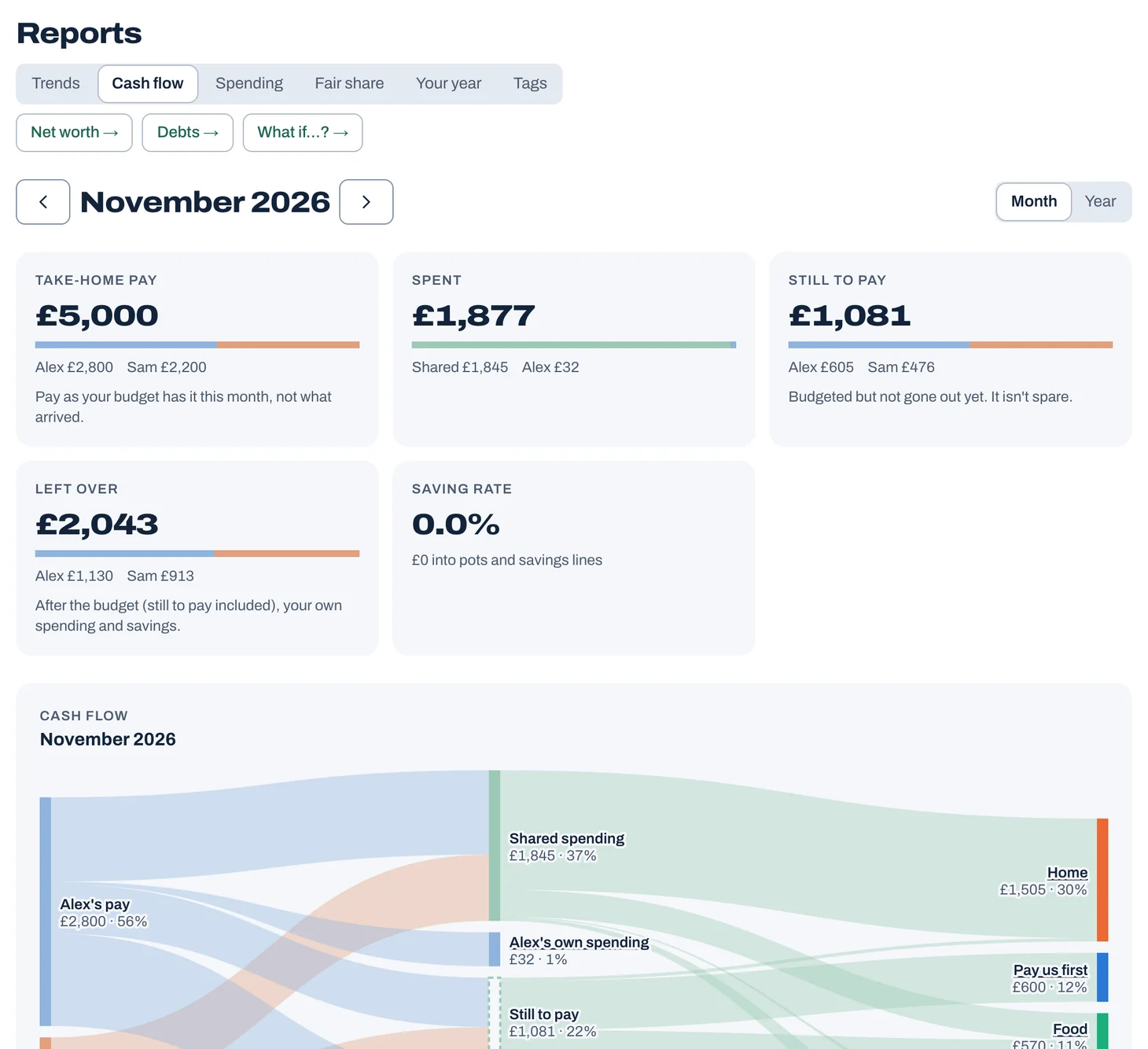
Five figures for the month: take-home pay, spent, still to pay, left over and your saving rate. The first four are split between the two of you (and shared, for spending); the saving rate is for you both. Take-home pay is your pay as the budget has it for the month, not what actually arrived. Below them, a picture of where each of your pay went: to shared spending, your own spending, savings, what's still to pay and what's left, then on to your budget sections.
Still to pay is what your budget lines are set for but haven't spent yet, like rent that goes out later in the month. Left over is what's left of your pay after all of that: your share of the budget (what's still to pay included), your own spending and your savings. So it's only money that's still free: yours to spend or save. Once a month is over, what a line didn't spend shows as "Unspent budget": it stays in joint and counts towards next month.
Shared spending is shared out the way each line is split. Money between you and transfers aren't counted, and nor is anything not sorted yet on your own account (it could be pay or a transfer). If your partner keeps their own money private, their part shows only as their own money.
Under the picture, "Shared money by group" lists each section. Open one to see its lines, and tap a line to see the spending behind it.
Switch from Month to Year to see the whole year, from January (or the month your budget started) to now, each month measured against that month's budget. A line that came in under one month and over another counts once, as what it actually spent.
Tap to see it full size
Spending
- A ring of the month's spending, by category or by section. Choose everything, shared, or just one of you.
- Switch to "Change over time" to see each one against your usual, the average of the three months before. For this month, usual is what those months had spent by the same day, so a bill that hasn't gone out yet doesn't look like a saving.
- Tap a slice to see its transactions, by day, beside a summary: how many, the largest, the average and the total. Download them as a CSV.
Your year
The year so far, or any earlier year you've used Jointwise: what you saved into pots, paid towards debts, the months you closed together, your date nights, what you spent each month, where most of it went and who you paid most.
Choose "Save as a picture" for a square image to share. It shows only what you saved, paid off, the months you closed and your date nights, never what you earn or spend.
Choose "Download summary (PDF)" for a one-page record of the year: what came in, each budget line against what was spent on it, spending outside the budget (your own, one-offs and the like) kept separate, what each of you paid into joint, and your pots and debts. Refunds come off what they refund, a new pot's opening balance isn't counted as saved, and paying off a credit card counts as paying off debt unless you clear that card in full each month. Handy for a mortgage application or just keeping a record. Unlike the picture, it does show what you earn and spend, so keep it to yourselves or the people who need it.
See what's behind a number
On Trends, tap a category in "What changed" or "Sticking to the budget" to see the transactions behind it, for the same months. Prefer numbers to charts? Choose "See it as a table". "Print or save as PDF" is at the top (the printer button on a phone).
Net worth
What you're worth together: everything in your savings pots, plus your home if you own it, less everything you owe, credit cards included (even ones you clear each month, which have their own line). Open it from the Net worth link beside the report tabs, or from "Net worth, with your home" under the Saved and owed chart.
Add a rough value for your home under "What your home is worth" (a recent online estimate is fine) and Jointwise shows your equity: what the home is worth less the mortgage on it. Add the mortgage itself under Debts. Clear the box and save to take the value off. Both of you see the same home value.
"Over time" is worked back from money in and out of your pots, the debt payments you've recorded, and spending and payments on your cards. Interest isn't in it, so earlier months can be a little out. Your home is counted at today's value all the way back, so the line moves with your saving and paying off, not house prices.
Tip: It only counts what's in Jointwise. Your partner's own pots and debts are in it when they share everything with you, so you both see the same total. Bank balances, pensions and investments aren't in it.
Debts and What if…?
Debts and the What if…? planner live in Reports too, as links beside the report tabs. See "Debts and payoff plans" and "Try a change with What if…?".
Who sees what
Personal spending only shows in your reports where your partner shares it with you.
Not financial advice. Jointwise gives you tools and general information to manage money together. It isn't regulated financial advice. It doesn't know your full circumstances.
Related features
More help
Debts and payoff plans
Add debts to Jointwise, compare avalanche and snowball payoff plans, see your debt-free date, and track progress.Credit cards in your budget
Track spending on a credit card, joint or your own: it counts in your budget when you buy, and paying the card off isn't counted twice.Try a change with What if…?
Use Jointwise's What if…? planner to see what a pay rise, part-time work, a new cost or a budget change does to each of you before you decide.Yearly bills and schedules
Build yearly bills like the MOT, insurance and Christmas into your Jointwise budget, plus weekly refills and monthly due dates. Free for everyone.
Sort your money together tonight.
Set it up in one evening and invite your partner with a link. Your 30 free days start when they join.
No card to start. Nothing deleted if you stop. Either of you can leave any time.