Add Jointwise to your phone or computer
Jointwise works in any browser, and you can add it to your home screen so it opens like an app. On an iPhone, that's also how notifications work. On a computer, Chrome and Edge can install it so it opens in its own window.
Updated 4 November 2026
The short answer
On an iPhone, open jointwise.io in Safari, tap the menu button (≡ in the address bar), then Share, then Add to Home Screen. On Android, open it in Chrome, tap ⋮ and choose Add to home screen or Install app. Then open Jointwise from the icon and turn on notifications in Settings. On a computer, sign in using Chrome or Edge and choose Install when Jointwise offers it.
Step by step, with pictures
Tap "Put Jointwise on your phone" on Home's getting-started list, or "Use it like an app" in Settings. It shows the steps for the phone you're holding, with a drawing of each screen and the button to tap ringed in green.
It ticks itself off the first time you open Jointwise from your home screen. If it doesn't, choose "I've done this".
iPhone
- Open jointwise.io in Safari and sign in.
- Tap Safari's menu button: the ≡ inside the address bar, bottom left (on iOS 26 it's ••• on the right). On an older iPhone, tap the Share button instead and skip the next step.
- Tap Share.
- Tap Add to Home Screen. If it isn't in the list, tap View More.
- Keep "Open as Web App" on, then tap Add.
- Open Jointwise from the new icon from now on. You'll stay signed in. To get notifications, go to Settings → Notifications and reminders and choose Turn on.
Tip: Using Chrome on your iPhone? Tap its Share button (top right) and look for Add to Home Screen, or open jointwise.io in Safari.
Android
- Open jointwise.io in Chrome and sign in.
- If you see an "Install Jointwise" button on the steps page, tap it and you're done. Otherwise tap ⋮ at the top right.
- Tap Add to home screen (on some phones it says Install app), then Install.
- Open Jointwise from your home screen, and turn on notifications in Settings → Notifications and reminders.
Send receipts straight in
Once it's on your home screen, Jointwise appears in your phone's share menu. Share a receipt photo to it and choose the transaction it belongs to, or add a new spend with it.
On a computer
- Open jointwise.io in Chrome or Edge and sign in.
- Choose Install on the "Install Jointwise on this computer" note at the top of the page, or "Install on this computer" in Settings → Use it like an app.
- Choose Install again in the box your browser shows. Jointwise opens in its own window.
- To keep it handy, right-click its icon in the dock (Mac) or taskbar (Windows) and choose Keep in Dock or Pin to taskbar.
Tip: Chose Not now? The note stays away for a month. You can still install from Settings → Use it like an app, or from the install button at the right of the address bar. Safari on a Mac can do it too: File → Add to Dock.
Getting around on a phone
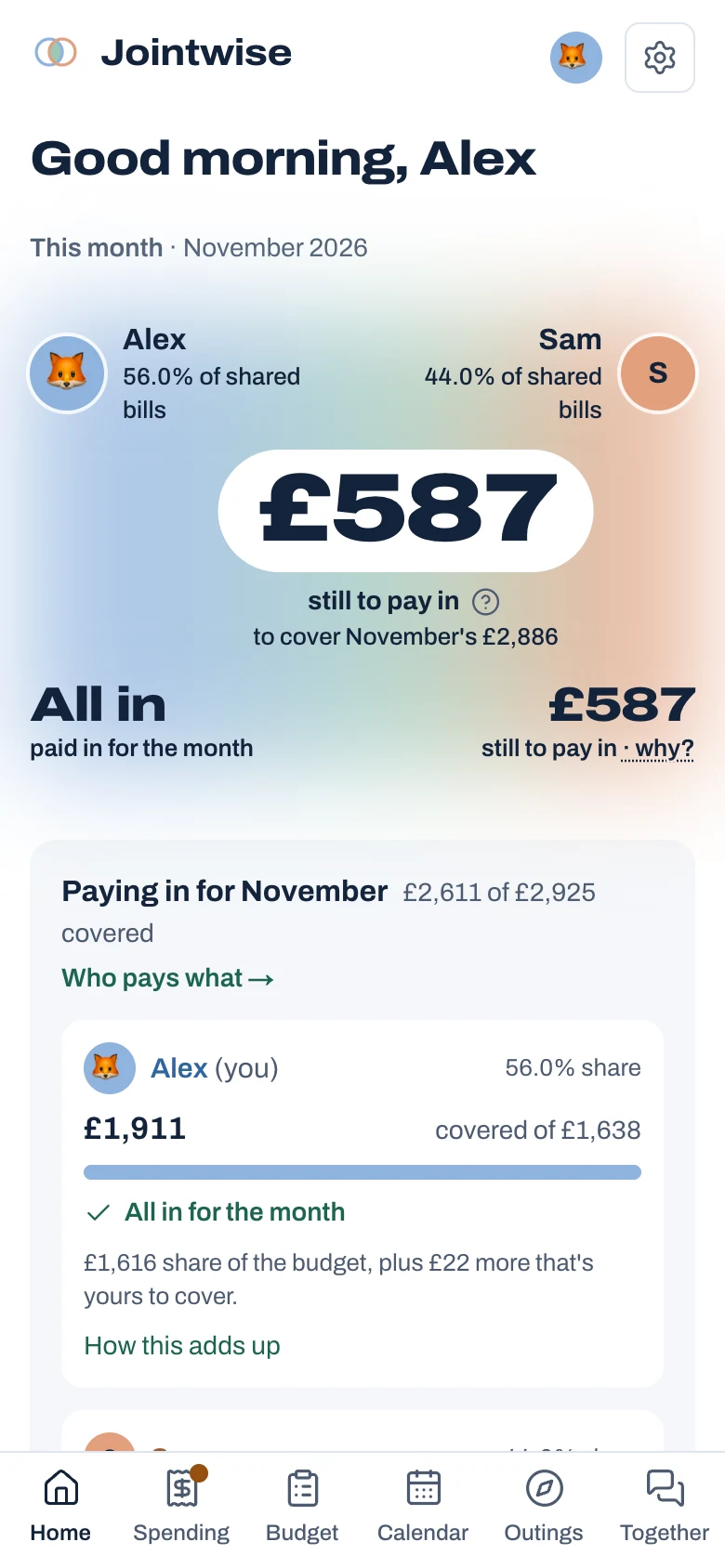
The bar along the bottom has the six areas: Home, Spending, Budget, Calendar, Outings (Things to do) and Together. Each area's pages are tabs along the top. Settings, help and the Community are behind the gear button at the top right, and the + button adds spending in two taps.
Not financial advice. Jointwise gives you tools and general information to manage money together. It isn't regulated financial advice. It doesn't know your full circumstances.
Related features
More help
Reminders and notifications
Reminders for bills, plans, to-dos, date nights, your weekly review and monthly check-in, by phone notification or one morning email.Share chores with to-dos
Add chores and one-off jobs in Jointwise, give them to one of you or both, set them to repeat, and see what's due.Your settings: names, pictures, look and more
Change your name or picture, switch to dark mode, take the tour again, sign up for the newsletter, and export your transactions, all in Settings.Safety, support and separating your finances
If money is being used to control you, or you're separating: where to get help, a quick exit button, and how to untangle your finances in Jointwise.
Sort your money together tonight.
Set it up in one evening and invite your partner with a link. Your 30 free days start when they join.
No card to start. Nothing deleted if you stop. Either of you can leave any time.