Import a bank statement
Jointwise doesn't connect to your bank yet (bank sync is planned for 2027). Download a statement from your banking app or website and bring it in: it's the quick way to catch up. For your first 90 days, we suggest adding most spending by hand (see "Why we start by hand").
Updated 15 November 2026
Download your statement
Most UK banks let you export transactions as a CSV file (sometimes called "spreadsheet" or "Excel" format) from their website or app. Pick the dates you want, usually last month.
Excel files (.xlsx) work too. If you keep your spending in Google Sheets, you can use a share link instead of a file.
If your bank only gives you a PDF statement, choose that instead. Jointwise reads the transactions off the pages with AI and shows them for you to check, the same as a CSV. It takes a few seconds a page, up to 24 pages at a time. A PDF your bank has locked, or one with a password, can't be read: use a CSV for those. If any rows couldn't be read, Jointwise says how many, so you can add them by hand.
A CSV is still the better choice when your bank offers one: it's exact, where a PDF is read. Check a PDF's rows against your statement before importing. Dates you've already brought in from a CSV or your bank feed are spotted and left out, even where the PDF prints a name or date a little differently.
One thing a PDF has that a CSV doesn't: your balance. When the statement prints the account's balance at its last day (Monzo's "Account balance (Excluding all Pots)", say), Jointwise offers it after the import: "Your statement says £X on that date. Save that as your bank check?" Tap it and the bank check opens with the balance and date filled in, for you to save. If the statement doesn't clearly print one, nothing is offered: Jointwise never works a balance out from the rows. The PDF statements guide has the detail, including what a PDF can't do.
In the Jointwise iPhone app, skip saving it: when your banking app exports the statement, tap Share and choose Jointwise. It opens on the import page with the file in. Jointwise starts at the end of the share list: tap Edit there and add it to Favourites to keep it near the front.
Bring it in
- Go to Spending → Transactions and tap "Import statement".
- Choose which account it's from: the joint account, your own, or a credit card you've added.
- Pick the file, or paste a Google Sheets link. The sheet needs sharing as "Anyone with the link" (Share → General access). If it has several tabs, you can choose which one.
- Check the columns Jointwise has guessed: the date, the description and the amount. Fix any that look wrong.
- Check the categories, then import.
Tip: Any row Jointwise can't read (no date, amount or name in the columns chosen) is listed above the transactions before you import, so nothing goes missing without you seeing it. Imported the same month twice? Jointwise spots transactions it already has and skips them. A spend you added by hand is matched to its statement line (same account and amount, within a few days) rather than added twice. A month you've closed at a check-in can't take new spending until you reopen it. Imported the wrong file? Tap "Undo this import" under the result, or come back to the import page later: your last import is shown there with Undo, and it takes back everything that import added that hasn't yet been checked against the bank.
How categories are filled in
Jointwise reads the shop or company from each line. Banks add store numbers, dates and phrases like "CARD PAYMENT TO", so these are stripped off: every Tesco becomes "Tesco".
If you've sorted a shop before, it goes to the same category. The first time, well-known UK shops and services are matched to your own budget categories where the names fit: supermarkets to Groceries, streaming services to Streaming, fuel stations to Fuel and so on.
With a joint account, spending from your own account is never put on a joint category for you, by a remembered shop, a guess or AI: it could be a snack just for you, or something you've already split another way, like a shared tab in Monzo. On your own account the joint categories say "for both of us". Choose one only when you paid for you both and joint should pay you back, and it isn't remembered for that shop: you say so each time.
To choose a category, tap the one on the line and type to search by category or section name. Choose one and Jointwise asks whether the other lines from that shop should go the same way. Say yes for places that are always the same, like Tesco. Say no for places that vary, like Amazon (groceries one day, dog food the next), and you'll choose each time.
Not in the list? Type its name and choose "+ Add" with that name. The same panel as the budget's "Add category" opens, filled in from the transaction: its name, its amount each month and the day it went out, in the section it obviously fits ("NOW TV" with subscriptions, say) or else under Other spending. Change anything (how often, who pays, whether it's savings), choose Add to budget, and this transaction goes into it. Every other category list (the import preview, the bar for several at once, Catch up, Add by hand, a transaction's edit form and your rules) offers "+ New category…" too: it adds the line straight away at £0, in the section it fits or under Other spending, and chooses it. Set its budget on the Shared budget page when you're ready.
To narrow the list, use Money in or Money out, and the category filter beside them: type to find a category, or choose Uncategorised. They're behind the Filters button, with the account menu, and work with search. Each filter that's on shows beside the button: tap its × to take it off, or Clear filters to put everything back.
To sort several at once, tick them and choose a category in the bar that appears at the bottom of the screen, wherever you are in the list. On a computer, hold Shift and click to tick every transaction between the last one you ticked and this one, hold Ctrl (⌘ on a Mac) and click a transaction to tick it without opening it, or press Ctrl+A (⌘A) to tick them all. Esc clears them. Applied the wrong category to the lot? The message at the bottom offers Undo, and each goes back to what it was.
It asks the same after you sort a transaction in your transactions list or in Catch up. The question stays at the top of the list until you answer it, even once the line you sorted has moved off. Say yes and it sorts the others from that shop, including any AI sorted, and remembers it for next time. Say "No, it varies" and it stops asking about that shop.
A payment out of the joint account to one of you by name is suggested as "To (name): joint paying back, or taking out", not as spending. If it's the same amount as a shared bill that person paid from their own account in the fortnight around it, the suggestion says so. Choose it, and leave the bill on its budget line, so the bill counts once.
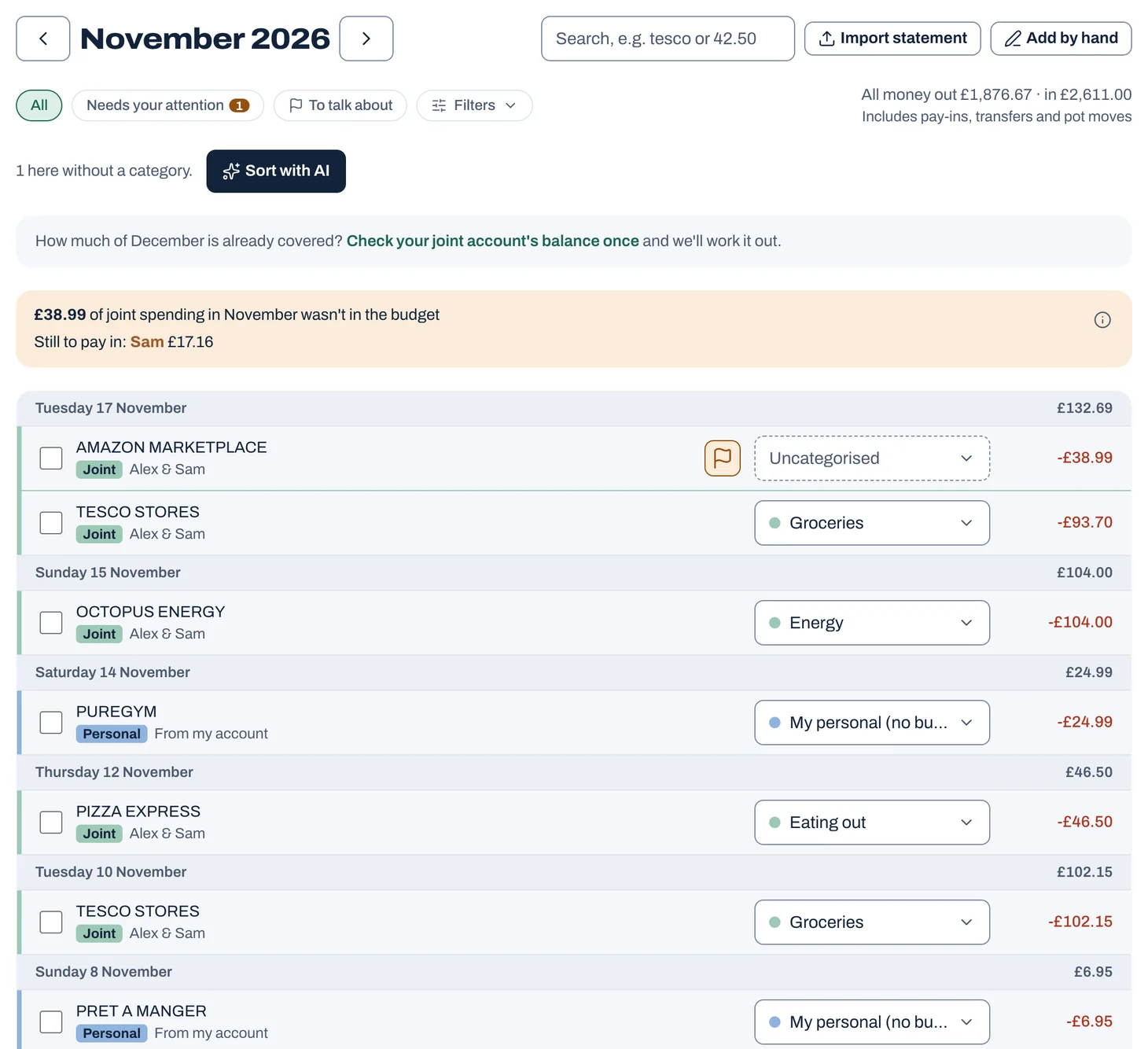
Each transaction is tagged with its account: Joint (in green) or Personal (in your colour), with a stripe down its edge in the same colour. Under the name it says which way the money went: "From my account" or "Into my account".
Money into your own account, like your partner sending you some, is "Money in for me": it's yours and doesn't touch the shared budget. A payment in from your partner by name is suggested that way.
Tap to see it full size
Importing months of history
Bringing in a few months to get going? Set a start date first, in Budget → Budget settings. Spending before it is history: it fills in your reports and helps spot your regular bills, but it never needs a category, so hundreds of old payments don't land on your to-do list.
With a few months in, the Shared budget page suggests your regular bills that aren't on a line yet, and a usual amount for lines that are a long way from what you spend. Tick the ones that look right.
Needs your attention
Spending without a category doesn't count towards your budget, so Jointwise keeps a list of it. Go to Spending → Transactions → "Needs your attention" to see everything since your start date (or from the last year) that still needs a category. The number on Spending shows how many are waiting.
There, Catch up shows them one at a time: tap a budget line, or Skip. Each one says whether money came in or went out, money in offers paying into joint first, and Undo puts the last one back if you tap the wrong thing.
Tap "Sort with AI". AI reads each one and files the obvious ones itself, like a supermarket under Groceries. Where it isn't sure, it suggests a category for you to accept with "Use this". Once you file one from a shop yourself, the others from that shop still to sort suggest your choice instead. Anything it can't place stays for you to choose. A category named after one company is only for that company: Amazon Prime Video won't be put under Netflix. When nothing fits a regular bill, like a streaming service you've no line for, it offers to add one: "Add “NOW TV” to the budget". From your own account, you choose whether it's just yours (a line in your own budget), your savings (one of your own pots, with this as money moved into it), or a shared bill you pay. And AI won't suggest a joint pot for money leaving your own account. With Premium it also runs by itself straight after you import a statement.
Whatever AI files is marked "Sorted by AI" until one of you checks it. Find them under "Sorted by AI": change any that are wrong, then tap "Looks right, keep all".
Tip: For Sort with AI, only the bank description, amount, date and account go to the AI, with your category names. Not your names, and not your partner's private spending. A PDF statement is different: its pages are read as they are, with whatever your bank prints on them.
What's worth talking about
Jointwise flags joint spending worth a word at your check-in: the spend that took a budget line over its budget, something for you both from joint with no budget line, and one of you buying something for yourself from joint (if you pool everything, only when it isn't on your own budget), whatever it cost. Spending with no category yet waits under "Needs your attention" instead, and a request agreed first covers its spend. Planned spending isn't flagged, however big, and nor are pots or transfers. Only flagged lines show a flag: hover over it to see why, and tap it to clear it. Find them all under "To talk about".
To flag anything else yourself, open it and choose "Flag for check-in".
Above the list, a note says how much joint spending this month the budget didn't plan for, how much of that has no category yet, and whether what you've paid into joint covers it or how much each of you still has to put in. Once you've checked the joint account against your bank (Spending → Accounts), it also says where joint will end the month. Months before your budget started don't get this note: their spending is history.
Fixing a remembered category
Go to Settings → Merchant categories to see every shop Jointwise remembers and where it goes. Change or remove any that got it wrong.
Not financial advice. Jointwise gives you tools and general information to manage money together. It isn't regulated financial advice. It doesn't know your full circumstances.
Related features
More help
PDF statements: reading the pages, and using the balance
When you only get a PDF: how Jointwise reads the pages, what to check first, how the balance printed on it becomes your bank check, and what a PDF can't do.Your weekly money review
Ten minutes once a week: add what's missing, sort what's new, check the joint balance and see what's left, with a Sunday reminder if you'd like one.Add spending by hand, and keep receipts
Add a spend in two taps with the + button, add money in or out by hand, and attach receipts, invoices or bookings to transactions, even straight from your phone.Add your bills, including yearly ones
Add shared bills to your Jointwise budget, weekly to yearly, and see the monthly figure worked out for you. Rename anything to suit you.
Sort your money together tonight.
Set it up in one evening and invite your partner with a link. Your 30 free days start when they join.
No card to start. Nothing deleted if you stop. Either of you can leave any time.